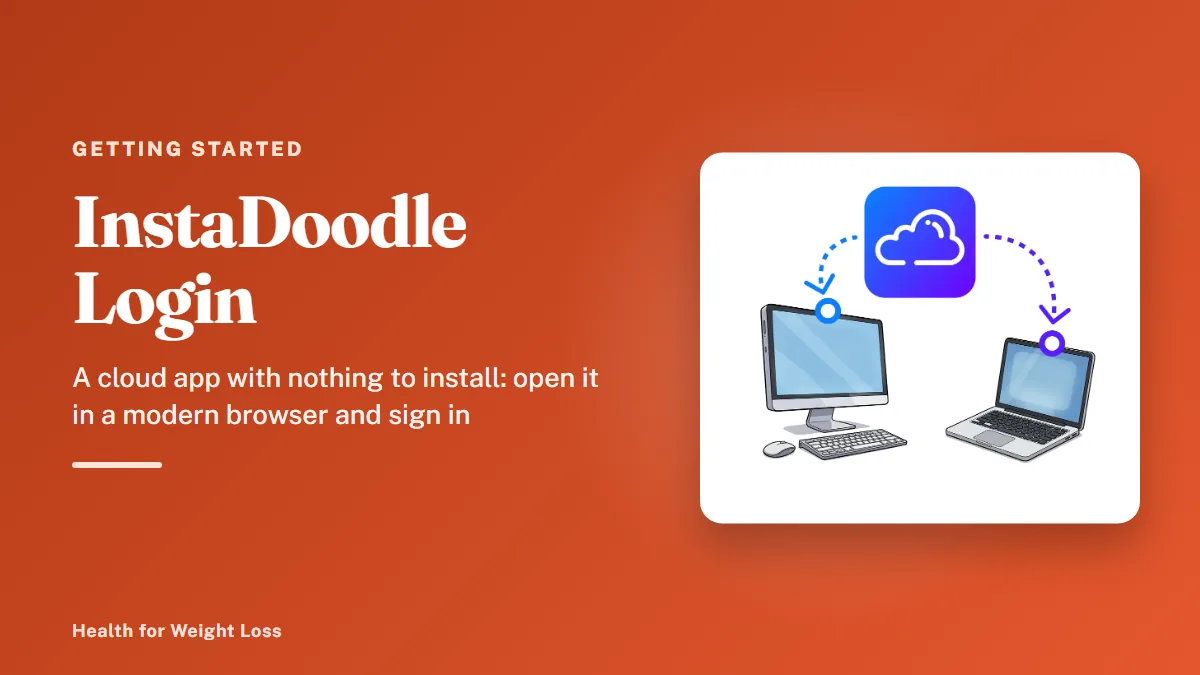
An InstaDoodle login is straightforward after checkout, since the workspace is a web page rather than a desktop application. The address you need is instadoodle.app/user/login, and the email you enter is the one written on your confirmation message. Below you will find the address, the email, the browser requirements, the support ticket route and a short note for buyers signing in for the first time.
First time signing in?
Keep the confirmation message nearby while you type the address.
Select Your Monthly TierThe tier, the figure and the vendor appear on the order screen first.
InstaDoodle login, step by step
- Launch a current browser. Mac, Windows and most other devices can run the workspace without any download.
- Enter the address by hand. Type instadoodle.app/user/login into the address field.
- Provide the account email. Use the address from your confirmation message, then continue through the on-screen fields.
- Compare before another attempt. If the page refuses the address, check it letter by letter against the confirmation message first.
Typing the address yourself is the careful route. A link that shows up in an unexpected message or a search result may lead somewhere else. If that happens, close it and go back to the order screen you used.
Why nothing needs installing
Because the vendor calls the product cloud based, the editor, the AI features and your files sit on its servers, and your device acts as the viewer. That is why sign-in is a web address rather than a setup routine. Any reasonably current browser can display the editor and play back a preview.
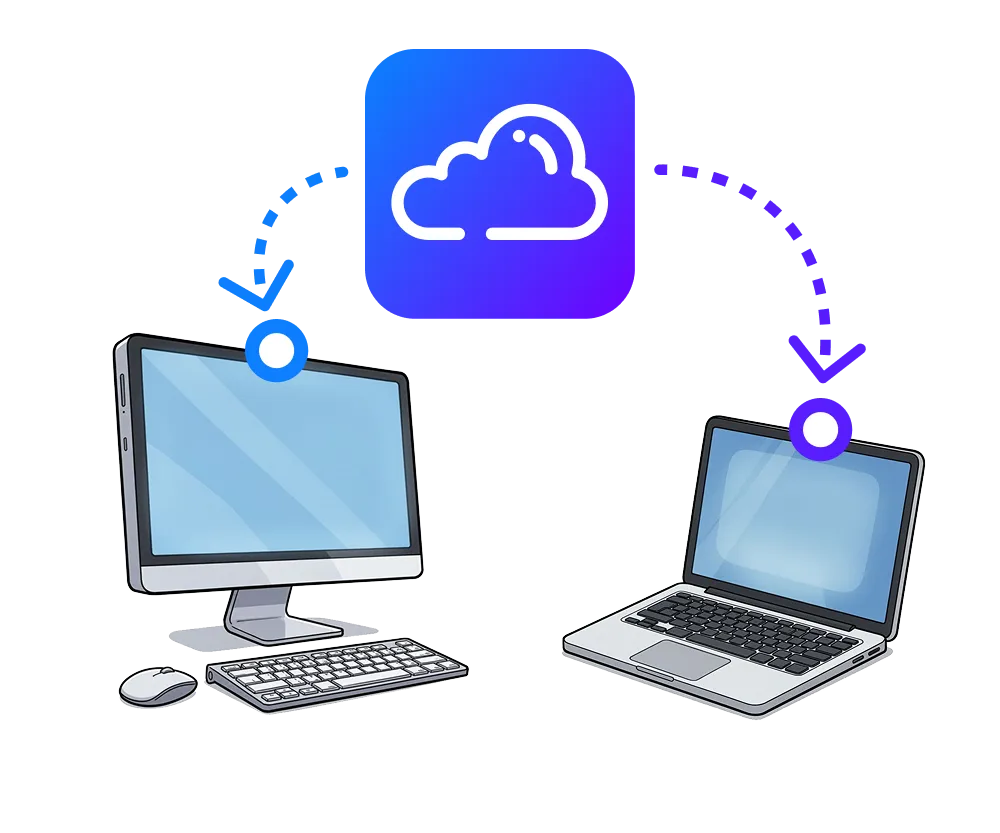
The vendor lists Mac, Windows and any device with a modern browser. If you move to a different computer, log in there with the same account email, since nothing has to be moved between machines by hand.
The account email and where it comes from
Your account email is the address printed on the confirmation message. Hold on to that message, because it also records the order particulars that support staff request. When a login fails, an address mismatch is the first suspect, so compare the two before you assume a fault.
If the monthly figure on the message does not agree with the tier you chose, make a note of the difference and raise it with the desk before you start any project. The InstaDoodle hub shows the three tiers in one view, which makes the comparison quick.
Signing in from a tablet or phone
The vendor lists any device with a modern browser, so a tablet can open the sign-in page as well as a laptop. Before you begin a long session on a smaller screen, open the page once to confirm it displays the address field and the sign-in fields as expected. Typing a long account email on a small keyboard is easy to get wrong, so check the characters twice.
Sign in, then get started
The address and the account email are both printed on your confirmation.
Pick Your Plan FirstThe order screen names the vendor before any charge is made.
Support and the help desk
Support is run from the vendor’s help desk at help.instadoodle.com. Create a ticket there with your account email and order number, and leave passwords out of it. The same desk handles refund questions, so one channel covers both. The InstaDoodle hub lists the tiers, which helps when a reply mentions a particular level.
Answer follow-up questions inside the existing ticket so the record stays intact.
Signing in before a refund claim
A refund is a separate matter from signing in, although it uses the same desk. Start a ticket headed Refund Request, and include the account email, the payment date and the order number. Under a 60-day money-back guarantee, a claim is assessed against the vendor’s terms. Keep your confirmation email for the whole life of the plan, since it supplies the particulars.
The credit condition still applies. Once more than half of the included AI credits have been consumed, the vendor’s policy rules out a refund, so glance at your balance now and then. Our refund guide breaks the steps down.
Renewals and closing a plan
Each tier renews monthly until you end it. Ending service runs through the billing settings or the desk, and it is distinct from a refund claim. Should you wish to stop, end the plan first, then consider whether a refund claim is also warranted. A refund removes your access, so save any finished clips you still need beforehand.
Sign in with clear expectations
The address, the account email and the help desk route, all on this page.
Begin With a TierMonthly billing applies, with the vendor named before you confirm.
Questions that come up at the login screen
If the page shows a company name that differs from the one on your confirmation, pause and compare them. Both should refer to InstaDoodle. A mismatch calls for a message to the desk before you enter any further details.
On a locked-down work machine, the same address in another modern browser is a reasonable next step. Keep the address exactly as written, and confirm that the page loads over a secure connection before you enter your email.
If the account email has changed
If the address you registered with is no longer in use, avoid guessing at a replacement. Open a ticket at help.instadoodle.com, explain what changed and quote the order number. Retain the old confirmation message until the desk responds, since it is the bridge between the order and the account. Two parallel tickets from different addresses only complicate matters, so keep to one thread.
What signing in leaves unchanged
Signing in simply opens your account. It leaves untouched the tier, the monthly figure, the credit allowance and the refund terms that appear on your order. If anything on screen looks different, use the confirmation message as the reference and raise the discrepancy in writing.
Renewal dates work the same way. A sign-in neither cancels nor extends a plan, so read the renewal line on your confirmation to know when the next charge falls due.
What to include when you write to the desk
A support message is easiest to act on when it is complete. Name the issue in the subject line, give the account email you tried, quote the order number and describe what the page showed, in one or two sentences. Say which browser and device you used, since that detail helps the desk reproduce the problem. Leave out anything that does not bear on the sign-in, and keep all replies in the same thread.
Shared or borrowed computers
On a shared device, sign out before you walk away and close the window. An account email typed on a public machine is an easy way to leave a session open by mistake. A private browsing window also avoids saving the session on that device.
A checklist for first-time buyers
- Save the confirmation message before you close the order screen.
- Note the account email and the payment date somewhere secure.
- Sign in once at instadoodle.app/user/login to confirm access.
- Review the catalog FAQ for other common questions.
Our InstaDoodle review assesses the tool itself, and the price guide sets out each monthly figure before your first sign-in. The seller says it offers no free version, so sign-in follows a monthly plan rather than a no-cost option.
Ready for your first login?
Choose the monthly tier that suits your work, then use the address above.
Visit the Order PageMonthly plans only, with the seller shown at checkout.