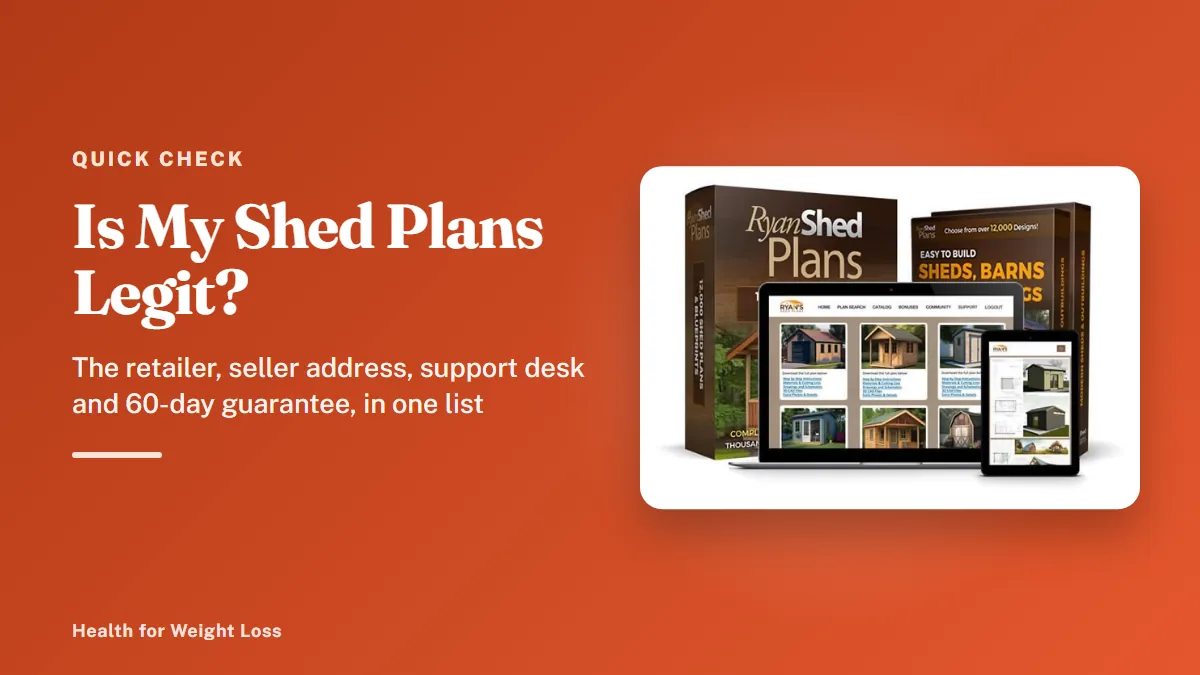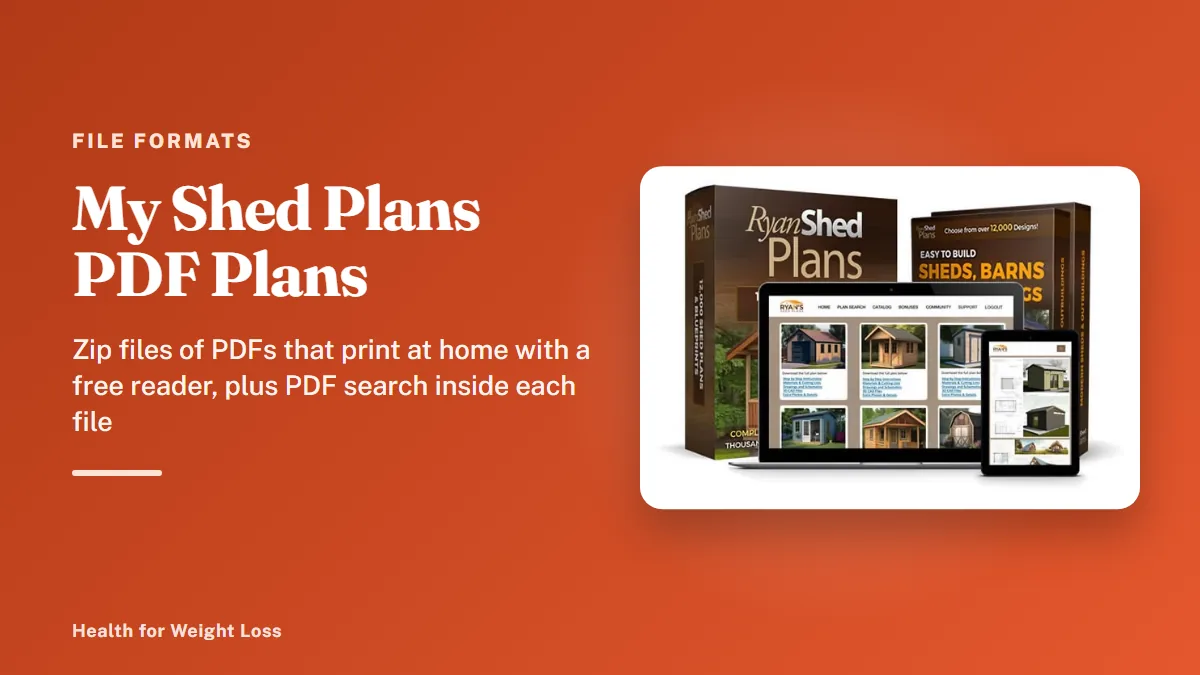
My Shed Plans PDF files are the heart of what you receive: zip archives that unpack into PDF documents, which you read with a free reader. This guide covers the file layout, the search inside each PDF, the wait on large downloads, printing at home and where the optional disc fits. Knowing these details first makes the library easier to use once you log in.
Get the PDF library
Zip files of plan PDFs, opened with one $37 payment.
Get the PDF Library for $37Single payment · ClickBank processes the order
Why the plans arrive as zip files
A zip file packs many documents into one download, which suits a library with a very large number of designs. Each archive holds PDFs, so the unit you open is a document rather than a web page or an app screen. Unpack the archive to a folder on your computer, then open the PDFs from there. Keep the original zip until you are sure the contents opened correctly, since it is the same file you downloaded.
My Shed Plans PDF files on your computer
Once the archive is unpacked, keep the PDFs in a folder that matches your project. One folder for each shed you are weighing keeps search results relevant, because a query for a roof name will not pull in drawings you have already set aside. Back up the folder to a second drive once the download is complete, since downloading the large zip files again can take a while. Keep the original zip beside the folder for the same reason. Naming the folder after the roof and the footprint, such as a gable design for a small garden shed, makes the right drawing quicker to find weeks later.
Setting up a reader first
The PDFs need Adobe Acrobat Reader. The seller names it as the program to use, and it is free to install. Set it up before you start the download, so the first file you open loads without a detour. Any reader that supports PDF search will work for the steps in this guide, but the seller’s own instructions point to Acrobat, so that is the safe choice.
Searching a PDF that holds several plans
Because one PDF may contain several blueprints, the reader’s search box does most of the sorting. Type a roof name, a footprint or a heading from the materials list, and the reader jumps to the match. Scrolling a long file by hand is slow, so search first and scroll only once you have landed on the right page.
Find the drawing faster
Search inside each PDF instead of paging through it.
Browse the LibraryOne $37 payment · ClickBank is the retailer
Downloads that take a while
The seller warns that the zip files are large and can take a while to download. Start a download when you can leave the connection alone, and avoid running several large transfers at the same time. Leave the zip file untouched until the transfer has finished, because moving a partly downloaded file can leave an archive that will not unpack, and then the transfer has to start again. A wired connection is steadier than a wireless one for a file this size, although either works if you leave it alone. If a file does not open after it finishes, the seller’s help desk is the place to raise it, through its ticket form, with the order details from your confirmation email.
Printing the pages at home
Because the plans are PDFs, a home printer can produce paper copies. The pages that usually go to the workbench are the materials list, the cutting list and the drawing for the stage you are on. Print those and leave the rest on screen. Keep the digital files as the master copy, so a page that gets dirty or torn can be printed again without any hunting.
Choosing which pages to print
Printing an entire PDF rarely makes sense, since a single file may hold several blueprints. Pull up the drawing you want, then print only its pages. Keep one clean copy of each list in a folder with your tools, and mark off items as you gather them. A marked copy tells you at a glance what you still need, which is more useful than a stack of pages you never sort.
Reader habits that help with long files
A long PDF with several blueprints is easier to handle with a few reader habits. Use the page number box to jump to a page you have already noted. Zoom in when you need to read small dimension labels, and zoom back out to see the layout of the whole sheet. When a search hit lands on a materials list, read it at full size before printing, so the quantities are legible. These habits take a minute to learn, and they spare you from squinting at a printout later. The product hub also lists the file details in one place.
Turning a materials list into a shopping list
A materials list works best when you copy it into a shopping list before you visit a yard. Group the items by type, so lumber sits with lumber and fasteners with fasteners, then note the lengths and counts exactly as the plan writes them. Check each line against the cutting list, since a count that looks right on the materials page can miss a cut that the cutting list adds. Taking the list to the yard on paper, with the page number written beside each group, keeps the conversation with the staff short and accurate.
Free copies elsewhere are not the real library
Some websites offer shed plan PDFs for free. Those copies are not the seller’s library. They sit outside the members area, so the seller’s help desk, its ticket route and its 60-day money-back guarantee do not apply to them. We cannot vouch for how complete or safe such copies are, so if you want the plans this guide describes, get them from the seller’s order page.
The optional PC DVD-ROM
At checkout the seller also offers the core plans on a PC DVD-ROM. Per the seller, it ships in 12 to 18 working days. The disc is made for a computer drive, so a home DVD player will not read it. Treat it as an extra copy of the core plans rather than a second library, and check the checkout screen to see whether the option appears for your order. Per the seller, the disc is offered to spare you the time and hassle of the downloads, so it is an alternative route to the same plans rather than an extra design set.
Print only the pages you need
Plans arrive as PDFs, opened with one $37 payment.
Unlock the PDF PlansSingle payment · ClickBank is the retailer
Where the PDFs fit your project
The PDFs are the working documents: the drawing, the materials list and the cutting list all live inside them. The reading order that tends to work is to search for your roof, check the footprint, read the materials list, then open the cutting list just before you buy wood. That sequence keeps the paper trail tidy and avoids ordering lumber for a design you later abandon.
For the wider picture of what the library contains, our what-it-is guide walks through the members area, and the bonus rundown covers the four extras that arrive with the order. Common questions are answered in the FAQ sub-page, and the hub brings the product facts together.
Open the PDFs this week
Zip downloads, a free reader and one $37 payment.
Start the $37 OrderClickBank is the retailer · keep your confirmation email